A VellumSoft scan runs in five stages, prepare, scan, review, act and prove, split into ten steps. You agree the scope, point the scanner at a folder or a single file, read what it could not cover, triage the findings, fix the files at the source, scan again to show the reduction, and file the audit report. All of it happens on one computer, with results encrypted under a passphrase.
The ten steps
| Stage | Step | What to do |
|---|---|---|
| Prepare | Define scope and approval | Which shares and mailbox exports, why, and who may review the results |
| Prepare | Configure | A new results folder on a local, encrypted drive that does not sync. Region BOTH unless the data is single-country, both tiers on, encryption on, and OCR on if scanned records are in scope |
| Scan | Run the scan | Keep the computer awake for large mailbox or OCR scans |
| Scan | Check Coverage | Read it before the findings and record what was not read |
| Review | Triage | High-impact Tier 1 first, then hot-spot files, Tier 2, then moderate and low |
| Review | Verify selectively | Reveal values only where a decision depends on it |
| Review | Suppress with reasons | Test data and confirmed false positives, each with a note |
| Act | Remediate at the source | Delete, move into the system of record, restrict access or redact |
| Act | Re-scan | Scan the same scope again to show the reduction |
| Prove | Report and retain | Produce the audit report, file it, and dispose of results files on schedule |
Prepare: decide what is in scope
Most of the work happens before the scan. Note any files that need converting or extracting first, because version 2.0.2 does not read Word, Excel or other Office formats, or ZIP and 7z archives. See supported file types for the full list.
The results folder matters too. A results file is a map of where sensitive data lives, so it belongs in a local folder that does not sync to the cloud.
Scan: coverage before findings
A clean result does not mean a folder is clean. The Coverage tab lists the formats the scan met but could not read, and every item it could not fully extract, such as password-protected or corrupt files. Read it first.
Review: counting and triage
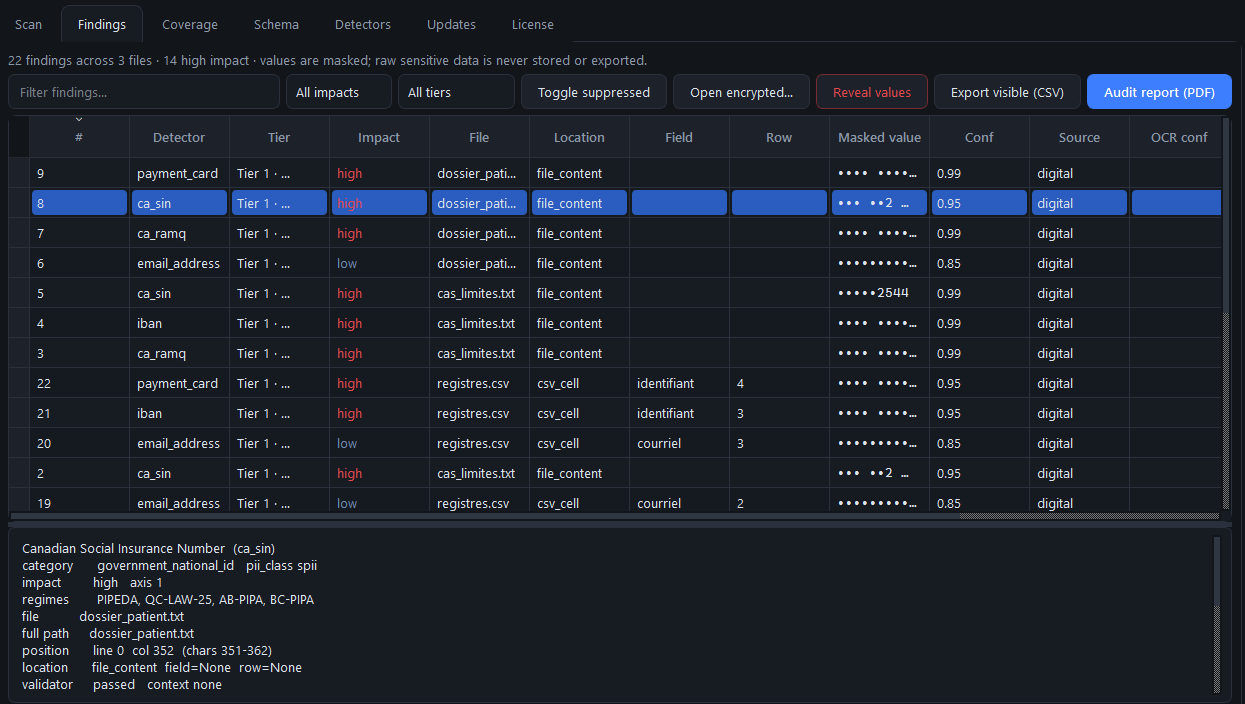
The line above the findings table gives the totals for the loaded scan: findings, files and the high-impact count. A findings cap stops one large export from drowning out everything else, and totals are still counted past it, so the count of findings stays honest.
Triage runs from most certain and most harmful to least. Tier 1 findings passed a checksum or structural check. Tier 2 findings rest on a nearby keyword or column name, so they need more review. False positives explains how to suppress a finding with a reason.
Act: fix the files, then scan again
The scanner does not delete or redact anything. Remediation happens in your own systems. PIPEDA says personal information no longer required for its purposes "should be destroyed, erased, or made anonymous"1. Hand each owner a masked CSV filtered to their own folders, then scan the same scope again.
Prove: the audit report
The last step is the PDF report. It carries an executive summary, findings grouped by regulation with counts per data type, file locations, a coverage disclosure and a SHA-256 fingerprint of the results, with no raw values. See the sample audit report for each part.
Related pages
Questions
How do I count the PII records in a folder?
Run a scan and read the totals line on the Findings tab, which shows findings, files and the high-impact count. Totals keep counting past the findings cap, and the audit report gives counts per data type.
How long does a scan take?
We do not quote a scan speed. OCR is the usual cause of a slow scan, so scan image-heavy folders separately, with OCR on only where it is needed.
How often should a scan be repeated?
We suggest a quarterly scan of shared drives and departmental folders. We also suggest one before and after each migration or mailbox export, and one straight away when scoping a suspected incident.