To scan one Outlook mailbox file, choose File on the Scan tab, pick the .pst or .ost, write results to a new local folder, and run the scan. VellumSoft 2.0.2 reads the messages and their attachments, and each finding names the folder, sender, date, subject and attachment it came from. Check Coverage afterwards, because some attachments will not have been read.
Before you start
Old PST files turn up on shared drives and in departing staff folders. They also turn up before a move to Microsoft 365, whose Import service can bulk-load PST files into Exchange Online mailboxes1. Mailbox exports, including decade-old .pst files and forwarded attachments, are among the typical places to look.
Copy the file somewhere the scanning account can read it. The Windows account running the program must be able to read the files it scans.
Steps
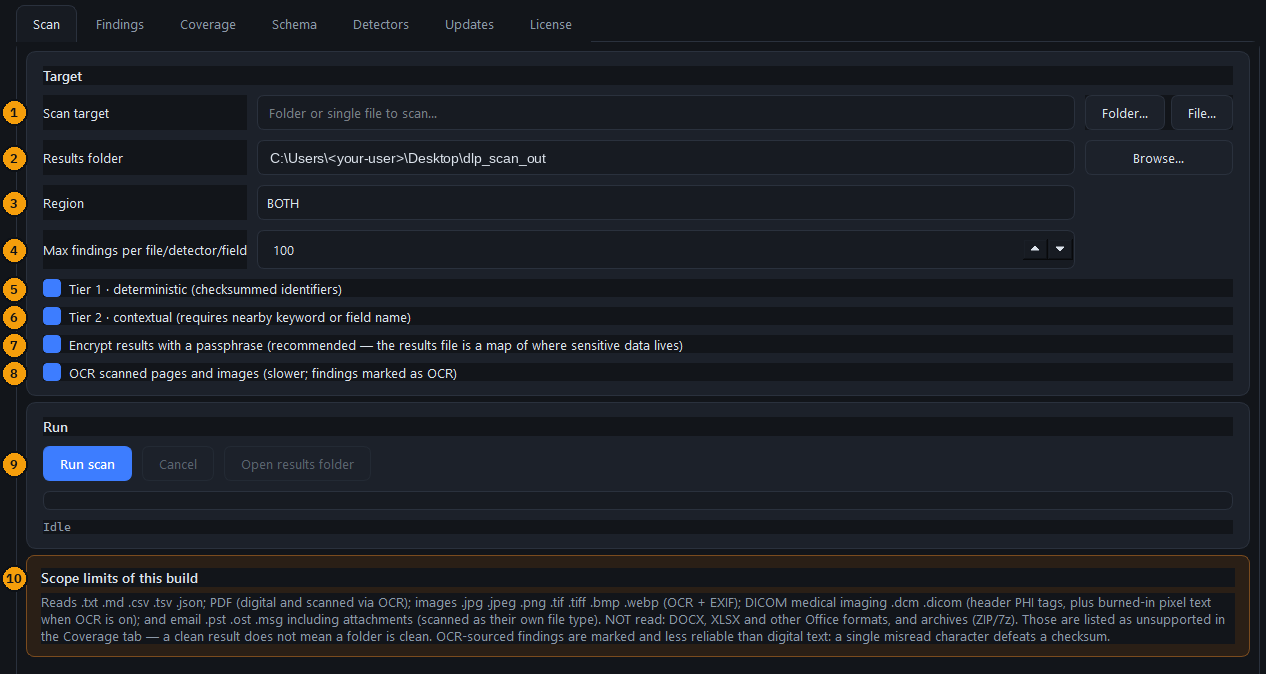
- Set Scan target. Click File and select the .pst or .ost, or paste its path.
- Set Results folder to a new, empty, local folder that does not sync to OneDrive or any other cloud service. The default folder sits on the Desktop, which syncs on many managed computers.
- Leave Region on BOTH unless every person in the mailbox is in one country.
- Leave Tier 1 and Tier 2 on. Several provincial health numbers are Tier 2, found only with a nearby keyword.
- Turn OCR on if scanned forms or photos arrive as attachments. Leave it off otherwise, since OCR is the usual cause of a slow scan.
- Keep Encrypt results on and choose a passphrase. VellumSoft rejects passphrases under 8 characters, and we recommend 16 or more. Store it in your password manager before you click OK.
- Click Run scan. Keep the computer awake for large mailbox scans.
What a mail finding shows
The detail panel for a mail finding adds email lines: folder, sender, date, subject and attachment name. A finding in the message body and one in an attached PDF are reported separately.
Double-clicking a mail finding does not open the message. You are told the file is not available, so use the folder, sender and subject to find the message in Outlook.
Attachments that are not read
Each attachment is scanned as its own file type. A PDF or image attachment is read like any PDF or image. Word, Excel, ZIP and 7z attachments are not read, because version 2.0.2 does not read those formats anywhere.
That matters for old mail. Forwarded forms and exports often travel as Office attachments, and they will show up on the Coverage tab as unsupported. Save those attachments out, convert them to PDF or CSV, and scan them as files if they are in scope.
After the scan
Open Coverage first. Then triage high-impact Tier 1 findings, sort by file to find the hot spots, and suppress confirmed test records with a reason. We suggest a scan before and after every mailbox export.
Related pages
- Documentation
- Supported file types
- Offline and air-gapped activation
- Scan a mapped network share
- Read the audit report and coverage tab
- Before a PST import to Microsoft 365
Questions
Are attachments inside the PST scanned?
Yes. Messages and their attachments are read, and each attachment is scanned as its own file type. So a PDF attachment is read like a PDF, and a Word or Excel attachment is not read at all, since those formats are not supported in this version.
Why does double-clicking a mail finding say the file is not available?
A finding from inside a PST, OST or MSG file cannot be opened directly. Use the folder, sender, date and subject shown in the detail panel to find the message in your email client.
What if the PST is password-protected?
Unreadable, corrupt or password-protected items are reported, never silently skipped. Check the Coverage tab after the scan and either bring the file into scope or record it as a gap.
Sources
- Microsoft Learn, Learn about importing organization PST filesReviewed 28 Oct 2026